
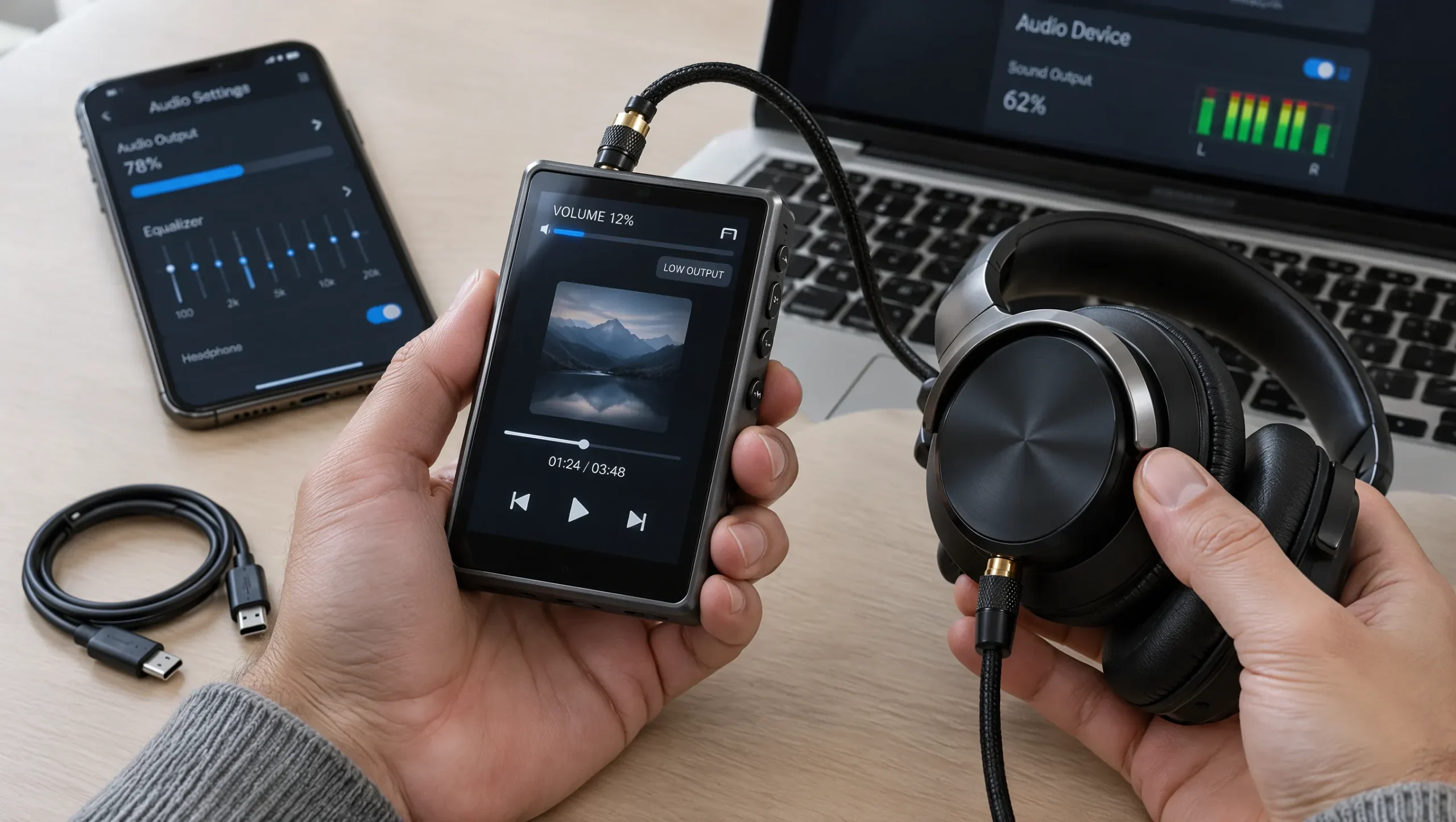
Listening to music should be enjoyable, whether you are relaxing at home, traveling, or exercising. However, unexpectedly quiet audio can make favorite songs difficult to hear, even when the volume seems high enough. This problem can become frustrating when it happens without an obvious reason.
A reliable Music Player Volume Fix starts with identifying what causes the sound to become weaker. Incorrect settings, headphone connection problems, and audio compatibility issues can all affect playback volume. Understanding these factors makes troubleshooting easier and helps restore a more comfortable listening experience.
Common Reasons for Low Music Playback Volume
Have you ever increased your music player volume but noticed that the sound remained unusually quiet? Several factors can explain this problem, ranging from simple configuration mistakes to limitations involving connected audio accessories.
Understanding Digital Music Player Low Volume problems helps users identify possible causes before making unnecessary changes. Checking basic settings and connections is a practical starting point for restoring normal playback.
Incorrect Volume Settings on the Device
Some music players have separate volume controls for system sounds, media playback, and connected headphones. A low media setting can make songs sound quiet even when other device sounds remain normal. Check the playback controls and confirm that any volume limit or hearing protection setting is not restricting the output.
Audio Output Limitations and Compatibility
Audio output can vary depending on the device’s hardware, file format, and connected accessories. Some headphones require more power than a particular player can provide. Unsupported audio formats or playback processing settings may also affect sound quality. Checking device specifications and compatible audio formats can help identify these limitations.
Headphone Connections That Affect Sound Levels
Loose headphone plugs, damaged cables, and dirty audio ports can interrupt the signal and reduce sound output. Wireless headphones may also experience connection problems or low battery levels. Testing another pair of headphones can help determine whether the issue comes from the accessory or the music player itself.
Troubleshooting Low Volume on Music Players
Once the possible causes are understood, the next step is checking the device systematically. Start with basic controls before exploring advanced audio settings or potential hardware problems.
Mastering engineer Bob Katz explains the importance of playback perception, stating, “the consumer is the one that has control over the ultimate listening level.” This perspective highlights why users should evaluate their actual playback experience rather than assume every recording has the same volume level.
Checking System and Playback Volume Controls
Begin by checking the main volume level and individual playback controls. Some devices remember different volume settings for specific applications or audio outputs. Also inspect any volume restrictions, equalizer presets, or safe listening features that might limit maximum output.
Inspecting Headphone Ports and Connections
Disconnect the headphones and inspect the audio port for visible dust or debris. Reconnect the plug securely and check whether the sound becomes clearer. For wireless accessories, verify Bluetooth pairing, battery status, and connection stability. Avoid inserting sharp objects into headphone ports when cleaning them.
Adjusting Equalizer and Audio Settings
Equalizer settings can influence how loud different frequencies sound. Excessive reductions in certain frequency ranges may make music seem less powerful. Try returning the equalizer to its default setting and temporarily disabling sound enhancements. Compare several tracks to determine whether the adjustment improves playback consistency.
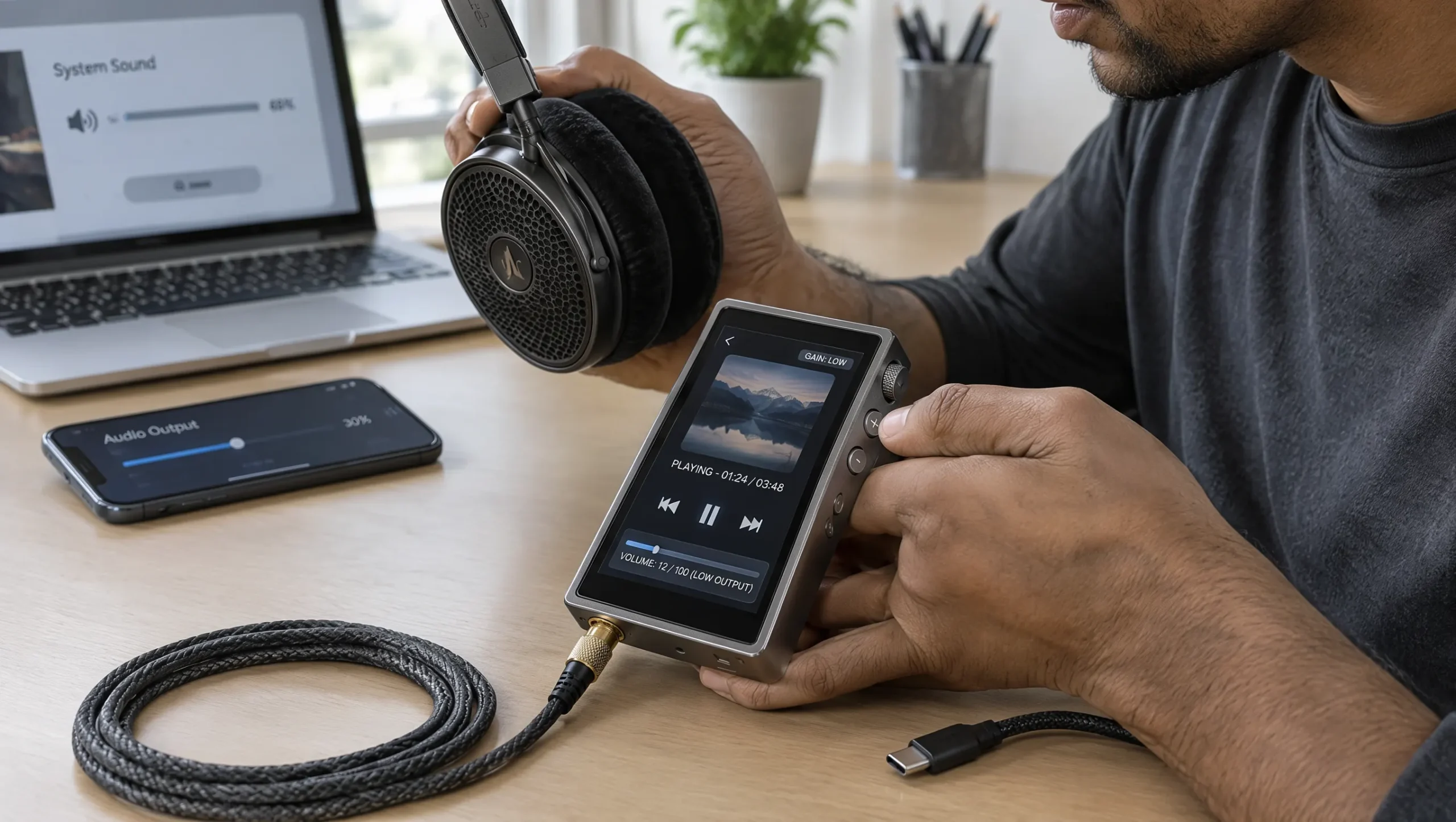
Restoring Clear and Consistent Music Playback
After making basic adjustments, take time to evaluate whether the music player performs normally. A successful troubleshooting process should improve listening comfort without introducing distortion or unexpected changes in sound quality.
Professional mastering engineer Ian Shepherd emphasizes the importance of Sperspective reminds listeners that increasing volume is not always the best way to achieve better sound quality.
Testing Volume After Device Adjustments
Play several songs with different recording levels to evaluate the results. Compare playback through different headphones or speakers when possible. This helps determine whether the adjustment improves overall performance or only affects particular audio files.
Identifying Persistent Audio Output Problems
If the volume remains low, consider possible hardware or software problems. Outdated firmware, damaged headphone ports, and failing internal components can interfere with audio output. Restarting the device and checking for available updates may help resolve software-related issues. Persistent problems may require professional inspection.
Maintaining Reliable Music Playback Performance
Regular maintenance can reduce the likelihood of recurring audio problems. Keep headphone ports clean, protect cables from excessive bending, and install compatible software updates. Avoid exposing the player to moisture, dust, or extreme temperatures that could damage internal components.
Restore Better Sound on Your Digital Music Player
Low playback volume does not always indicate serious hardware damage. In many cases, checking volume controls, inspecting connections, and adjusting audio settings can restore normal performance. Understanding how accessories and device configurations affect sound also makes future troubleshooting easier.
Ready to enjoy better audio? Check your music player settings and bring your favorite songs back to a comfortable listening level.